
Open most eBooks and tap the “Contents” or menu icon, and you get a list of chapters you can jump to directly. Tap “Chapter 12,” and the reader takes you straight there, no scrolling required. That convenience feels automatic, but it isn’t. It’s built by hand, and it’s also one of the most common reasons a finished EPUB gets rejected by a retailer or frustrates a reader who taps a chapter title and nothing happens.
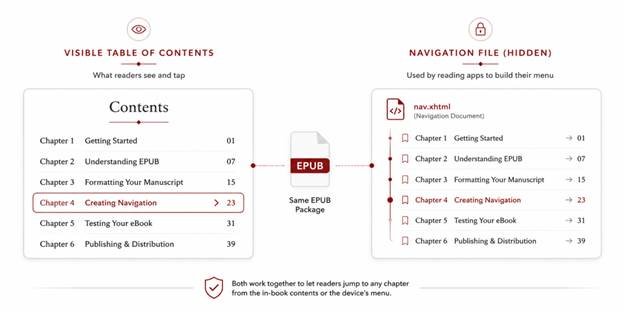
A clickable EPUB table of contents is really two separate things working together. Page a reader can see and tap through, and a hidden navigation file the device itself uses to build its own menu. Both need to exist. Both need to actually work.
This guide explains how the EPUB navigation system actually works, why links break, and how to set it up correctly using standard manuscript formatting and conversion tools.
Two Important Tables of Contents
This is the part that trips people up first: “table of contents” in an EPUB refers to two different components, and it’s easy to build one and assume it covers both.
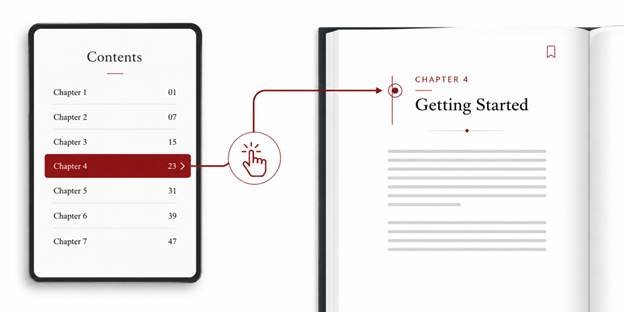
The visible table of contents is a page inside the book itself. It’s something a reader flips to, same as they would in a print book, except each chapter title is an actual live link rather than plain text. Tap “Chapter 3” on this page, and the reader jumps there.
The navigation file is invisible while reading. It’s a hidden index built into the EPUB’s structure that reading apps use to power their own built-in menu. This hidden file powers the “Contents” button in the corner of the screen and the chapter list in a Kindle’s navigation drawer. This is separate from the visible page, and it’s what most reading apps actually rely on for jump-to-chapter functionality, regardless of whether the reader ever looks at the visible TOC page at all.
A properly built EPUB has both. A common mistake is building a nice-looking visible contents page and assuming that’s sufficient, while the hidden navigation file is missing, broken, or incomplete, so the device’s own menu is empty or wrong even though the in-book page looks fine.
What the Navigation File Actually Does
Think of the navigation file as a table of coordinates rather than a table of contents in the traditional sense. For every chapter, it records the chapter’s title and the exact location inside the file where that chapter begins. The reading app reads this list once when the book opens, and uses it to build its own navigation menu automatically, which is why a reader can jump to any chapter from a device’s own interface, not just from a page inside the book.
There’s a wrinkle worth knowing: EPUB comes in two generations, and they each expect this navigation information built slightly differently. Newer EPUB3 files use an XHTML navigation document; the older EPUB2 standard uses a different file called an NCX. Many professional EPUBs include both, specifically so the file works correctly on the widest possible range of devices, including older E-readers that were never updated to recognize the newer format. Leaving out the older version isn’t necessarily wrong, but it’s worth understanding that it is a compatibility trade-off, not an oversight, when done intentionally.
Why Some Links Land in the Wrong Spot
Even when a navigation file exists, readers sometimes report a link that lands close, but not exactly where the chapter starts, often a paragraph above or below the correct spot. This almost always comes down to missing anchor points.
Every chapter heading in the file needs its own identifiable marker for a link to be able to point to that exact spot. If the navigation file references a chapter but the heading itself has no matching marker at that precise location, the reading app does its best guess, which is often close but not accurate.
Building the Visible Contents Page Correctly
The in-book contents page has its own separate failure point. It’s easy to format a list of chapter titles to visually resemble links, without the underlying link actually being connected to anything. The page looks correct on a screenshot and fails the moment someone taps it.
Each entry on this page needs to be a genuine, working hyperlink pointing to that chapter’s location in the file. If you’re working with a formatter or software that builds this automatically, that’s usually handled correctly by default. If you’re assembling it by hand, this is the step most likely to get skipped under time pressure, because a broken visible link doesn’t announce itself the way a formatting error does; it just quietly does nothing when tapped.
How to Actually Build Your TOC Without Writing Code
Now that you understand the anatomy of an EPUB, the next question is how to actually create these files. Unless you are hand-coding your ebook from scratch, you will rely on formatting software to generate the hidden navigation files for you.
1. Tag your manuscript with heading styles
E-readers cannot “see” that your chapter title is bold, centered, or written in a large font. To an E-reader, that is just regular text. E-readers rely on built-in heading styles to understand the structure of your book.
If you are writing in Microsoft Word, Google Docs, or Scrivener, apply Heading 1 to your main chapter titles. If your book has major sub-sections, apply Heading 2 to those sub-sections.
Do not just highlight the text and increase the font size manually. You need to use the actual Styles panel in your word processor. When you convert your manuscript into an EPUB, the conversion tool scans the document, finds every Heading 1, and uses those headings to build the hidden navigation file.
2. Create the visible contents page
If you use formatting software such as Vellum, Atticus, Kindle Create, or Calibre, the visible contents page is often generated automatically.
If you are building the EPUB from a Word document, create a page near the front of the book titled Table of Contents. Type out your chapter list, then hyperlink each entry to the matching chapter heading inside the manuscript.
For example, the entry for “Chapter One” should link to the actual Heading 1 text that begins Chapter One. When the file is converted, those hyperlinks become the clickable links readers see on the visible contents page.
3. Let the software generate the EPUB navigation files
You do not need to manually write the EPUB3 navigation document or the older NCX file yourself. When you run your properly formatted manuscript through an EPUB converter, the software reads your heading styles and creates the hidden navigation files for you.
This is why heading styles matter so much. The software cannot build a reliable navigation menu if it cannot tell which lines are chapter titles and which lines are normal paragraph text.

What to Include (And What Gets Missed)
For fiction, the contents list is usually straightforward. One entry per chapter, sometimes including front matter like a prologue or dedication. For nonfiction, this is where books frequently fall short: subheadings within a chapter often get left out of the navigation entirely, even when a reader would reasonably expect to jump straight to a specific section rather than the beginning of an entire chapter.
If your book has meaningfully distinct sections within chapters, consider whether those deserve their own navigation entries, not just the chapter they sit inside. A forty-page chapter with no internal navigation asks more scrolling of a reader than a well-organized nonfiction book usually should.
Testing Every Entry, Not Just the First
The most common way a broken table of contents reaches readers is a check that only tested the first and last chapter, on the assumption the ones in the middle behave the same way. They don’t always. A single mistyped anchor or a chapter renamed after the fact can break one specific entry while everything around it works fine, and that’s exactly the kind of error a quick skim won’t catch.
Before publishing, click through every single entry, in both the visible contents page and the device’s own navigation menu, on more than one platform if possible. Confirm each one lands exactly at the chapter’s opening line, not just somewhere in the general vicinity.
Troubleshooting Common Navigation Issues
Even with the best tools, you might run into a few common hiccups. Here is how to fix them without touching any code:
- The TOC links jump to the wrong place.
This usually happens if you have duplicate chapter titles or if you forgot to apply a page break before a new chapter. Ensure every new chapter starts on a fresh page and that your Heading 1 style is applied only to the actual chapter title, not to headers or footers.
- The logical menu is missing chapters.
Check your source document. Did you accidentally format a chapter title as “Normal” text and just make it bold? The conversion software will ignore it.
- The visual TOC page looks messy.
If your visual table of contents page has weird spacing or underlined links that look ugly, adjust the hyperlink styles in your word processor before converting. You can set hyperlinks to be black and un-underlined to match the aesthetic of your book.
Even with the best tools, you might run into a few common hiccups. If you’re running into upload issues, check our guide on why KDP keeps rejecting your eBook or use the quick fixes below
FAQ’s
The visible contents page inside your book and the hidden navigation file your Kindle actually reads are two separate systems.
Not strictly; EPUB3 uses a newer XHTML navigation document instead. But many formatters include the older NCX file anyway, purely for backward compatibility with older e-readers that never updated to recognize the EPUB3 format.
This is almost always a missing or misplaced anchor point. Every chapter heading needs its own exact marker for a link to land precisely. If that marker is slightly off or missing, the reading app makes its best guess, which can land close but not exact.
No, this is one of the most common causes of a broken or missing navigation menu. E-readers can’t detect visual formatting like bold or font size; they rely entirely on actual Heading styles to know where chapters begin.
Conclusion
Creating a clickable EPUB table of contents is an essential step in ebook publishing, but it does not require a degree in computer science. By relying on proper heading styles in your manuscript and utilizing modern formatting software, you can easily generate both the visual and logical navigation systems your readers expect. Take the time to format your source document correctly, let your software do the heavy lifting, and always test your final file. If building and testing both navigation systems by hand feels like more risk than you want to take on, Uprisen Publishers’ eBook formatting service builds and tests fully linked navigation on every project, across five or more devices, before it ever reaches a retailer.
eBook Formatting Checklist: 47 Things to Check Before KDP
[…] For the full mechanics of how EPUB navigation actually functions and how to fix broken links, see our guide to building a clickable table of contents. […]