
Word lets you save as PDF or HTML, but there’s no built-in “Save As EPUB” button. So most authors turn to free online tools or converters that promise to handle it in under a minute. If you have a finished manuscript in Microsoft Word, you may assume you can convert Word to EPUB in one click and publish. Sometimes that works. More often, it creates broken chapter breaks, missing navigation, strange indents, and files that fail retailer checks.
The problem is usually not the converter. The problem is that EPUB is not just a Word document with a different extension. It is a reflowable ebook format built around structure: headings, styles, links, images, and metadata. The difference isn’t the conversion step itself. It’s everything that happens before and after it. If your Word file lacks structure, the EPUB inherits the mess.
This guide explains how to convert Word to EPUB the right way: clean the manuscript, use proper styles, create navigation, choose the right tool, and test before publishing.
Why Direct Conversion Goes Wrong
A Word document is usually built for pages. It relies on page breaks, headers, footers, page numbers, tabs, and fixed spacing. An EPUB is built to reflow. The reader can change font size, margins, line spacing, and device orientation.
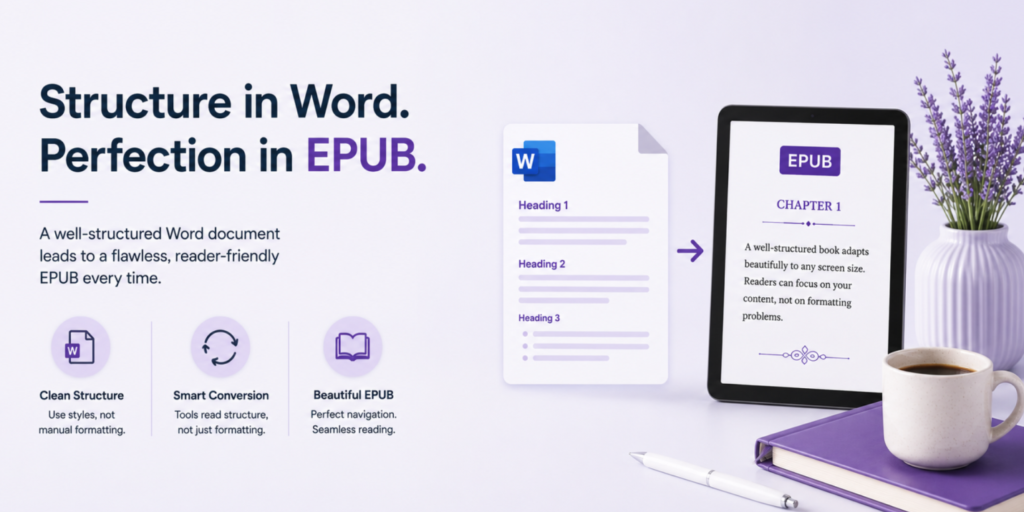
Because of that, EPUB conversion works best when Word is used in a structural format. A chapter title should not just be bold, centered, and larger. It should be tagged as a heading style. Paragraph indents should come from paragraph settings, not tabs or spaces. Chapter breaks should use real page breaks, not repeated Enter keys.
Manual formatting is the biggest culprit. When you convert Word to EPUB, the converter tries to translate formatting into ebook structure. If your file uses styles, the conversion is cleaner. If it uses manual formatting, the converter guesses. Those guesses create most ebook errors.
Most conversion tools rely on Word’s built-in heading styles to determine where chapters start and to build the table of contents automatically. Manual formatting that merely looks like a heading gives the converter nothing to detect, so the auto-generated table of contents comes out empty, incomplete, or wrong.
If these formatting problems slip through, they’re also one of the most common reasons a file gets bounced back. See our breakdown of the 11 formatting errors that trigger a KDP rejection for the full list.
Step One: Clean the Document Before You Convert Anything

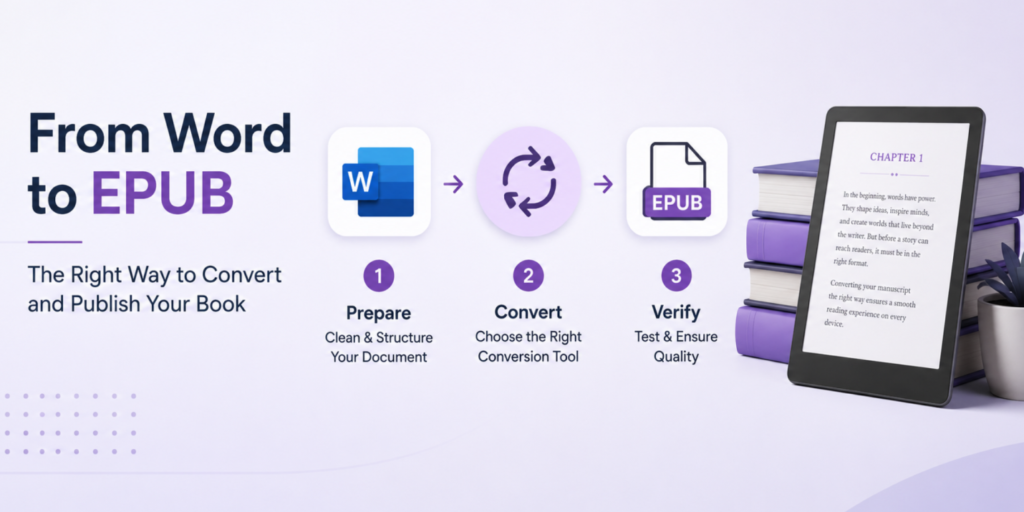
This is the step almost every rushed conversion skips, and it’s the one that matters most. Before converting anything, the Word document itself needs to be structurally clean:
Use actual heading styles for chapter titles, not manual bold-and-enlarge formatting. This single change is what allows any conversion tool to correctly detect chapter breaks and build a working table of contents automatically.
Remove manual tabs and spaces used for indentation, and set paragraph indenting through Word’s actual paragraph formatting instead. Manual spacing looks fine in Word and turns into broken spacing once the file becomes reflowable.
Accept or reject all tracked changes, and delete any leftover comments. These aren’t always visible in a normal reading view, but they’re still part of the file’s underlying data, and some conversion paths will surface them unexpectedly.
Remove headers, footers, and page numbers. These are a print concept. An EPUB reflows based on the reader’s font size and screen, so there’s no fixed page number. These page numbers look like a formatting error because, in a reflowable ebook, they are one.
Standardize your quotation marks and dashes. Word’s autocorrect can produce a mix of straight and curly quotes depending on how text was pasted in over time. Run a find-and-replace pass before converting, not after.
Step Two: Choose Your Conversion Method
Once the manuscript is clean, you have a few realistic paths, and they suit different situations.
Free conversion tools, like Calibre’s built-in converter, handle a clean manuscript well and cost nothing. They’re a reasonable choice for straightforward fiction or nonfiction with no complex layout needs. A free converter can’t fix structural problems; it just faithfully converts.
Dedicated formatting software, like Vellum or Atticus, re-imports your cleaned manuscript and applies a proper design template on top of the conversion, producing a more polished file. This is a good middle ground for authors who want real design quality.
Professional formatting or hand-built EPUB makes sense when the book has real complexity. Here, someone building the file with full control over the underlying structure will produce a more reliable result than any conversion tool, because they’re building the file directly.
None of these is the universally “right” choice. The right one depends on how complex your book is and how much control you want over the final result. If you would rather skip the trial and error entirely, our eBook conversion services can turn your Word manuscript into a clean, retailer-ready EPUB with proper styles, navigation, and quality checks.
Step Three: Check What the Conversion Actually Did
Converting the file isn’t the final step. Verifying it is. A few things are worth checking every single time, regardless of which method you used:
Open the table of contents and click through every entry. Confirm it actually reflects your chapters, in the right order, and that each link lands at the right spot. Don’t just trust that a table of contents exists at all.
Look for stray leftover text. Page numbers, header text, or tracked-changes ghost text sometimes survive conversion. A full read-through of at least the first and last chapter catches most of these errors.
Check that fonts and formatting look consistent throughout, not just in the first chapter. It’s common for a formatting inconsistency buried in chapter 14 to survive a review that only checked the beginning of the book.
Verify image resolution and placement if your book has any. Images sometimes convert at a lower resolution than the original, or shift position relative to the surrounding text. Make sure images have 300 DPI resolution.
Confirm special characters converted correctly. Em dashes, curly quotes, and any accented characters are worth specifically checking, since these are common casualties of automated conversion even when everything else goes smoothly.
Word-Specific Traps to Watch For
A few Word features cause predictable problems specifically because they don’t have a real equivalent in EPUB:
Text boxes and SmartArt graphics often don’t convert at all. They can simply vanish from the converted file, taking whatever content was inside them along with it. If your manuscript uses either, check carefully that nothing disappeared.
Wide tables that display fine in Word frequently become unreadable once squeezed onto a phone-sized EPUB reading screen. If your book includes any tabular data, check it on an actual small-screen preview, not just a desktop view.
Common Mistakes to Avoid
Most conversion problems come from the same few mistakes.
- First, skipping style cleanup and hoping the converter will fix everything. It usually does not.
- Second, using manual formatting instead of styles. Bold, centered text is not the same as a heading.
- Third, forgetting navigation. A visible contents page is helpful, but the ebook also needs working navigation for the reader’s built-in menu.
- Fourth, testing on only one device or app. An EPUB may look fine in one reader and break in another.
- Fifth, leaving print elements such as page numbers, headers, and footers in a reflowable ebook.
- Finally, publishing without checking metadata. The EPUB should contain the correct title, author, language, and cover image.
When Cleanup Isn’t Worth It
Occasionally, a manuscript has been through so many rounds of editing, formatting attempts, and version changes over the years that cleaning the existing Word file takes longer than starting fresh. If a document has years of accumulated tracked changes, multiple past formatting attempts layered on top of each other, and inconsistent styling throughout, it’s sometimes genuinely faster to copy the plain text into a new document and rebuild the structure cleanly than to hunt down every inconsistency in the original file. There’s no shame in that decision because it’s often the more efficient one.
The Right Way, Summarized
Converting Word to EPUB properly isn’t complicated, but it is a specific sequence. Clean the manuscript’s underlying structure first, then choose a conversion method that matches your book’s complexity, and verify the result by actually testing it rather than assuming a successful export means a correct one. Skipping the first and last steps is exactly what separates a rough, obviously self-converted file from one that reads like it was built properly from the start. For the complete picture across every retailer, see our full guide to eBook formatting for Kindle, Apple Books, and all major platforms.
FAQ’s
You can, but “straight” conversion is exactly where most formatting breaks. Bold-and-large text that isn’t a real Heading style, manual tab spacing, and pasted-in text boxes all carry over as visual clutter instead of clean structure.
Conversion tools build your table of contents from Word’s built-in Heading styles, not from how your chapter titles look. If your chapter titles were manually bolded and resized instead of tagged as an actual Heading 1 or Heading 2, the converter has nothing to detect, and your table of contents comes out empty or missing entirely.
Calibre is the most commonly used free option, and it reliably handles the actual file conversion. What it won’t do is fix structural problems in your original Word file. A free converter faithfully converts whatever heading structure, spacing, and formatting you give it, mistakes included.
Usually not. Text boxes and SmartArt graphics are two of the most common casualties of Word-to-EPUB conversion;n they can vanish entirely, get flattened into a static image, or land in the wrong position in the reflowed text.
Children's Book eBook Formatting: Fixed-Layout EPUB Guide
[…] formatting, this distinction matters. If you’re starting from a text manuscript instead, see how to convert a Word document to EPUB […]