
Complete eBook Formatting Guide
You can have the most striking plot, the most interesting information, and the most stunning prose. However, if your eBook is poorly formatted, your readers won’t stick around to find out. In the digital publishing world, formatting is the foundation of your reader’s experience. A single messy page break, inconsistent font, or broken TOC can shatter the whole reading experience and make a masterpiece look like an amateur draft.
Whether you’re publishing on Amazon KDP, Apple Books, or anywhere else, this complete guide will walk you through everything you need to know. It is important to ensure your eBook looks as professional on the inside as your story is on the outside.
This guide includes the differences between EPUB, MOBI, and KFX, what Amazon KDP and Apple Books require in 2026, and the most common formatting mistakes that trigger rejections.
What eBook Formatting Actually Means
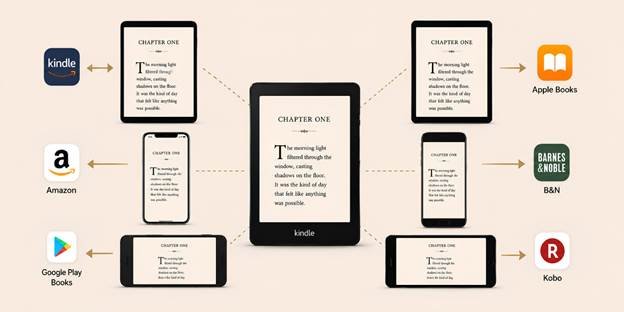
eBook formatting is the process of translating a standard manuscript into a digital file that e-readers and reading apps can understand, display, and adapt. When you write a book in Microsoft Word, you are creating a static document. eBook formatting transforms this static document into a fluid, reflowable experience.
A print book has a fixed page size. An eBook does not. Most eBooks are reflowable, where the reader controls font size, line spacing, and margins, and the text reflows to fit. The formatter’s job is to design a set of rules that produce a good result no matter how the reader has configured their device.
Effective formatting builds your story without ever getting in the way. It ensures that whether the screen is tiny or massive, the margins are correct, the paragraphs don’t break awkwardly, and the text never spills off the edge of the screen. A paragraph style, a heading style, a scene-break style everything needs to be applied using proper structural formatting. Avoid manually inserted tabs, manually bolded headings, or rows of manually typed asterisks.
How Formatting Impacts the Reader
Every design choice you make, from heading styles and paragraph spacing to how you handle scene breaks, either eases the reader’s cognitive load or increases it.
A reader will never consciously notice a perfectly formatted scene break. However, they will immediately stumble over a messy one that lacks visual separation, forcing their brain to work overtime to realize the scene has changed. Ultimately, excellent formatting is invisible, while poor formatting acts as a hidden tax on every single page.
Formatting also determines whether your file is accepted by different platforms. Major retailers like Amazon KDP and Apple Books enforce strict automated and manual quality checks before a book goes live. If your file contains technical flaws such as a broken table of contents, a missing navigation document, or hardcoded page numbers in a reflowable file, it will likely be rejected. In fact, these formatting errors remain among the most common reasons books are blocked from publication.
EPUB, MOBI & KFX: What Each Format Actually Is
Walking into the world of eBook formats can feel like learning a new language. You’ve got EPUB, MOBI, KFX, and a dozen other acronyms thrown around in publishing forums. This part confuses almost every first-time author, because the terminology has changed three times in the last fifteen years and a lot of “how to format your Kindle book” advice online is outdated.
1. EPUB: The Format You Actually Work With
EPUB (Electronic Publication) is the universal platform. It is the industry-standard eBook format used by virtually every retailer and reading platform except Amazon. It’s the format you’ll use for Apple Books, Kobo, Google Play, Barnes & Noble Nook, and most other platforms.
Structurally, an EPUB is a zipped package of XHTML files (your content), CSS (your Styling), a manifest, and a navigation document that defines your table of contents. EPUB gives you the most predictable and the most consistent results across every platform. It is genuinely the closest thing self-publishing has to a universal master file.
There are two versions in active use. EPUB 2 is the older standard and still widely supported. EPUB 3 is current, supports richer typographic features (better hyphenation control, improved drop-cap handling, accessibility metadata), and is what modern formatting tools like Vellum and Atticus produce by default. For most books, EPUB 3 is the better target, though EPUB 2 remains acceptable for simpler projects.
2. MOBI: Retired & Worth Knowing Why
MOBI was Amazon’s original Kindle format. Amazon acquired MOBI when it bought the Mobipocket Company in 2005. For over a decade, it was the primary format for Kindle devices. Later, Amazon retired direct MOBI uploads in 2022-2023. You cannot submit files today. It’s worth knowing the term still exists because older forum posts, outdated courses, and some formatting tools still reference it.
Old habits die hard in the publishing world. Many veteran self-publishers spent years working with MOBI, so the term persists in forums and older guides. However, for a book you’re formatting in 2026, MOBI is not part of your workflow at all.
3. KFX: What Kindle Actually Delivers to Readers
You never create a KFX file yourself. KFX is Amazon’s proprietary delivery format. When you upload an EPUB or properly formatted DOCX file to KDP, Amazon’s conversion engine transforms it into KFX automatically. That’s the file your reader’s device actually receives. KFX supports advanced typography and reading enhancements, including improved hyphenation, kerning, ligatures, and smarter word spacing that makes justified text look better on-screen.
Note: For older devices that can’t render KFX, Amazon falls back to generating an AZW3 file automatically. AZW3 (Kindle Format 8) is Amazon’s bridge between the ancient MOBI format and modern KFX. It offered better formatting capabilities than MOBI but lacked the advanced features of KFX. You don’t manage any of this. You control the input, and Amazon controls the output.
Amazon KDP Formatting Requirements (2026)
As of 2026, KDP accepts EPUB, Microsoft Word, HTML, plain text, and RTF for eBook manuscripts. EPUB is the best choice among all these. Amazon shifted to recommending it as the preferred input format back in 2023, and the gap in output quality between EPUB and DOCX hasn’t closed since.
Word Docs are not safe because KDP converts a Word file to HTML and then to KFX. There’s an extra interpretive step where Amazon has to guess what your Word formatting meant. The results show inconsistent paragraph spacing, custom fonts silently substituted, headers and footers dropped, text boxes rendered as images or vanishing altogether, and any leftover tracked changes or comments appearing in the published book. None of this reliably shows up in KDP’s own previewer. It sometimes only surfaces on a specific device months after launch, usually in a review.
For a simple, text-only manuscript with no images and minimal structure, DOCX can be adequate. For anything with a designed layout, images, or specific typographic choices, format in EPUB.
What KDP Checks & Requires:
Before your eBook goes live, it passes through automated validation tools and sometimes through manual reviews. If your file doesn’t meet the platform’s technical standards, your book will be blocked from publication, or worse, published with errors that lead to bad reviews. Make sure to run EPUBCheck yourself before uploading, as it’s free and catches these issues before Amazon does. If you run into persistent validation errors, using a professional eBook conversion service ensures your file passes technical checks without a headache.
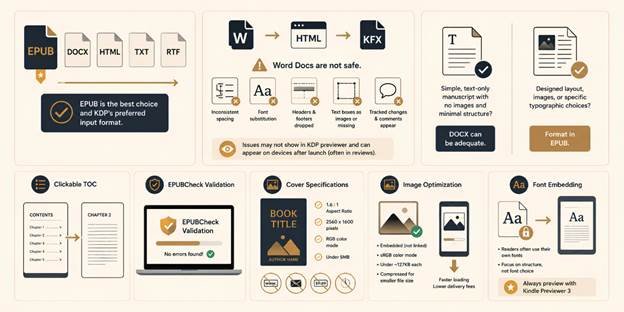
Here are some important KDP checks and requirements:
A Clickable TOC
KDP requires a functional, navigational Table of Contents. A simple, visually typed list of chapters at the beginning of your Word doc is not enough. The TOC must be built using proper heading styles so the e-reader can generate clickable links, allowing readers to jump between chapters instantly. A missing or broken TOC is one of the most common causes of KDP rejection.
EPUBCheck Validation
The uploaded EPUB files run through EPUBCheck. KDP rejects all files with structural glitches. Common EPUB errors include unclosed HTML tags, missing required metadata, or manifest entries pointing to files that don’t exist. Make sure to run EPUBCheck yourself before uploading, as it’s free and catches these issues before Amazon does.
Cover Specifications
The ideal aspect ratio is 1.6:1, with recommended dimensions of 2560 by 1600 pixels. The file must be saved in RGB color mode, as CMYK is for physical printing. Although the platform allows files up to 50 MB, it is recommended to keep your file under 5 MB. This ensures fast loading times on mobile devices. Your cover will also be automatically rejected if it contains website URLs, email addresses, pricing information, or time-sensitive promotional text.
Image Optimization
For KDP, images must be embedded in the file, not linked to an external drive. Images should be in sRGB format to ensure colors display correctly on all devices. KDP recommends keeping inline images under roughly 127KB each. EPUB’s total delivery size affects your royalty. Massive files trigger higher “delivery fees” (which are deducted from your royalty). Compress images without sacrificing visual quality.
Font Embedding
EPUB 3 supports embedded fonts, but most readers override your chosen font with their own preferred reading font anyway. Spend your effort on structural correctness. It affects the reading experience far more than font choice does. Always preview with Kindle Previewer 3 before publishing. It’s the closest thing to seeing exactly what a reader’s device will show.
Apple Books Formatting Requirements (2026)
Apple Books is stricter than KDP. It is one of the most straightforward platforms, accepting EPUB-only. Apple holds its files to a high standard of technical cleanliness and strongly prefers the modern EPUB 3 specification. Word documents and PDFs are not accepted for reflowable books. If your only formatted file is a DOCX, you cannot publish directly to Apple Books. You’ll need to convert to EPUB first.
Unlike some platforms that will attempt to “fix” a messy file during upload, Apple’s automated validation system is strict. If your file contains broken code, missing navigation, or unsupported elements, it will be rejected during the ingestion process. Running your final file through a free validation tool like EPUBCheck before uploading is highly recommended to catch these errors early.
Precise metadata and navigation are non-negotiable. Your EPUB must include a fully functional, hyperlinked Table of Contents to ensure seamless chapter navigation. The internal metadata embedded in your file must perfectly match the details you enter in your Apple Books publisher portal. Even minor inconsistencies between your file and your store listing can lead to publishing delays or outright rejections on this platform.
What Apple Checks & Requires:
- Both Types of TOC
Apple requires both a visual TOC and a functional TOC. A visual TOC is a readable list of chapters at the front of the book that your reader actually scrolls through. A functional TOC is the hidden, behind-the-scenes code (NCX) that powers the “Go to Chapter” button on the e-reader. If a reader clicks a chapter title and it doesn’t instantly appear, Apple will reject the book.
- No Embedded Page Numbers
Adding page numbers manually into your manuscript just creates a mess. Apple explicitly bans embedded page numbers in the body of a standard eBook. If you are publishing a textbook or academic book and absolutely need page references, you have to use a specific, hidden “page-list” feature in the code rather than typing them into the text.
- No Text Baking
If you design a beautiful, stylized chapter heading in Photoshop and save it as a JPEG to drop into your book, Apple will flag it. Because e-readers can’t “read” text inside a picture. Baking text into an image breaks the dictionary lookup, ruins the search function, and blinds screen readers for visually impaired readers. All text must be real and selectable HTML.
- Cover & File Optimization
Unlike some platforms where the cover is embedded inside the book file, Apple wants you to upload the cover art separately in their publishing portal. Keep it crisp and high-quality. It needs to be at least 1400×1400 pixels, saved as a JPG or PNG, and set to RGB color mode. Apple allows files up to a massive 2GB. Just make sure you compress your images before uploading so you aren‘t creating a bloated file that takes forever to download.
- Timeline
Apple is the slowest of the major retailers when it comes to approvals. If this is your very first book and your first time setting up an account, be patient. It can take up to two weeks to get approved. However, once you are an established author on their platform, your future books will usually breeze through the approval process in just one to three business days.
Formatting Requirements for Kobo, Google Play, Barnes & Noble (2026)
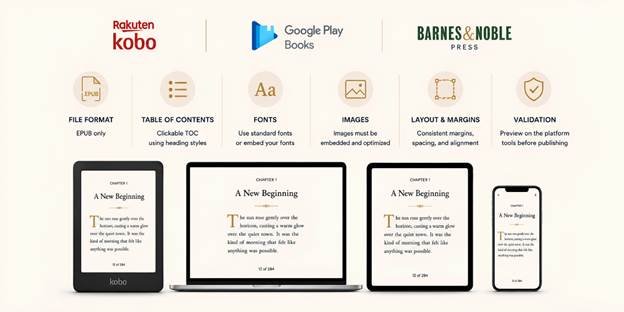
The golden rule of going wide is that an EPUB is king. While each platform has minor quirks, they all speak the same underlying language. Once you have a clean, EPUB 3-compliant master file with a correct navigation document and validated structure, you already have what Kobo, Google Play Books, and Barnes & Noble need. All three accept standard EPUB and are, in practice, more forgiving of minor deviations than Apple Books.
Your source EPUB should be your own clean master file before you format for other platforms. KFX is proprietary and locked to Amazon’s ecosystem. It isn’t compatible with Kobo or other non-Amazon readers. Keep your original EPUB as the single source of truth, and generate every platform-specific file from it.
Limitations of “Going Wide”
“Going Wide” means distributing books beyond Amazon to retailers like Kobo, Apple, Google Play, and Barnes & Noble. Kobo’s automated system is good at fixing minor formatting hiccups, but it will reject files with broken code or missing assets. Google is very strict about metadata matching. The title and author name in your EPUB’s internal code must exactly match what you type into the Google Play Partner Center. B&N is strict about file cleanliness. If your EPUB contains unsupported fonts or messy, copied-and-pasted HTML code from Word, their previewer will flag it.
Uploading to Kobo, Google, and B&N individually is entirely possible, but most authors use an aggregator or a professional conversion service that handles multi-platform delivery to distribute clean master files everywhere smoothly.
If you have a clean, industry-standard EPUB file with a properly embedded cover, a working Table of Contents, and accurate metadata, you are ready for 99% of the global market. Create one master EPUB, validate it, and let the retailers do the heavy lifting of getting it into readers’ hands.
The Step-by-Step eBook Formatting Process
Knowing the rules is one thing and applying them is another. Whether you are formatting the book yourself or preparing a manuscript to hand off to a professional, understanding the workflow will save you hours of frustration. Here is the exact step-by-step process to take your raw manuscript and turn it into a polished masterpiece.
- Clean Your Manuscript First
Before you worry about how the book looks, you need to fix how it’s built. Strip out double spaces, manual tabs used for indentation, empty paragraphs, and any leftover tracked changes or comments. This is tedious, and it’s also the single highest-leverage step.
- Apply Styles, Not Manual Formatting.
Every paragraph should use a paragraph style. Every chapter heading should use a heading style. Never simulate a heading by manually bolding and enlarging text. This is invisible to the software that builds your table of contents, so your TOC will end up empty or broken.
- Structure Your Book
Front matter (title page, copyright page, dedication) should be minimal and not itself contribute to reader confusion about where “the book” starts. Body Matter includes the actual chapters of your book. Back matter (an author’s note, a link to your next book, a newsletter signup) is where mailing list growth actually happens.
- Generate TOC from Styles
If you’re working in a dedicated formatting tool (Vellum, Atticus), this happens automatically from your Heading 1 styles. If you’re formatting in Word and converting to EPUB, use Word’s built-in Table of Contents feature based on your heading styles, and confirm your converter also generates the underlying navigation document (NCX/nav).
- Images Optimization
Insert images using proper EPUB image markup, not as Word floating objects that can shift position unpredictably during conversion. Keep them RGB, appropriately compressed, and never bake essential text into an image. Ensure images are set to “Inline with Text” rather than “Floating” or “Wrap Text.” Floating images are the #1 cause of broken layouts in eBooks.
- Apply eBook-Specific Styling
To ensure your text is both beautiful and perfectly reflowable, you must rely on structural formatting rather than manual spacing. Never use the spacebar or tab key for paragraph indents. Configure your paragraph settings to apply a precise “First Line Indent.” For scene breaks, center a simple symbol (*** or #) on its own line rather than inserting large blank spaces. Stick to standard, web-safe typefaces, allowing the e-reader’s native software to handle the final typographic rendering for the reader.
- Convert, Export, and Validate
It’s time to turn your Word doc into an EPUB. You can use Word’s built-in “Save as EPUB” feature. Once exported, run your EPUB file through a free validator like EPUBCheck or upload it to the Kindle Previewer. This step will catch a large share of structural problems before a retailer’s system does it for you. Preview on real tools, not just your laptop screen.
Note: Never publish a book you haven’t read on a device. Open your EPUB in the Apple Books app, the Kindle Previewer, and a web-based reader.
Common eBook Formatting Errors
These common errors are the primary reasons books get rejected by Amazon KDP, Apple Books, and other retailers.
- A Broken or Missing TOC
The single most common rejection trigger across every platform. Almost always caused by chapter titles that were manually styled instead of tagged with an actual heading style.
- The “Visual-Only” TOC
A visual TOC is just a map, but a functional TOC is the actual road. Ensure you generate a functional, hyperlinked navigation document properly.
- The “Enter Key” Page Break
Always use the “Insert Page Break” or “Section Break” function to add a break. Hitting the “Enter” key repeatedly creates awkward gaps on different devices.
- Manual Indentation & Spacing
Tabs or multiple spacebar presses are commonly used to create visual space. Use paragraph styles with defined first-line indent and spacing values instead.
- Page Numbers, Headers & Footers
An eBook has no fixed pages. Strip all headers, footers, and manual page numbers from your manuscript before exporting, as they destroy the reading experience.
- Text Baked into Images
E-readers cannot read text inside a picture. Use CSS styling to make your headings look beautiful without turning them into images.
- Floating Images
Setting images to “Wrap Text,” “Square,” or “Behind Text” is wrong. Always set images to “Inline with Text” so they sit naturally within the paragraph flow.
- Oversized, Uncompressed Images
These bloat file size and slow downloads. These files will increase your delivery fee on KDP specifically, which comes directly out of your royalty.
- Skipping Validation Entirely
A file that opens fine on your own device can still fail EPUBCheck, and a failed validation is often the actual reason behind a vague platform rejection message.
Conclusion
Some of the most important parts of an eBook are the ones readers never notice. They don’t change how the book looks, but they make sure it works properly on every platform and device. Two critical pillars ensure your book functions flawlessly. One is metadata, and the other is accessibility.
Metadata is the basic information stored inside an EPUB file, such as the book title, author, language, and ISBN. It helps stores like Amazon KDP and Apple Books identify, organize, and display your book correctly. If this information is missing or incorrect, your eBook may fail validation or face publishing issues.
Accessibility ensures that everyone, including readers using screen readers, can enjoy your book. Platforms like Apple Books require many of the accessibility features. The easiest way to meet these standards is to use proper paragraph and heading styles from the beginning, rather than manually changing font sizes or making text bold. This creates a better reading experience for every reader.
Mastering eBook formatting simply requires you to respect the reader’s experience. As we’ve covered throughout this guide, the ultimate goal of professional formatting is invisibility. By embracing reflowable text, sticking to a clean EPUB standard, and avoiding the common traps of print-based thinking, you ensure your book looks flawless on every screen, from a six-inch Kindle to a twelve-inch tablet.
Don’t let technical fears hold your manuscript hostage. Apply these principles, validate your file, and hit publish. Great content deserves great presentation, and now you have the exact blueprint to deliver it.
Where to Start
If you’re formatting your first book, start by cleaning your manuscript. Apply real paragraph styles, real heading styles, no manual tabs or empty-line spacing tricks. From there, build in EPUB, validate with EPUBCheck, preview on both Kindle Previewer and an actual EPUB reader, and only then upload.
Note: If the manuscript in front of you has tables, images, footnotes, or a layout more complex than straight prose, that’s usually the moment it’s worth bringing in a professional formatter rather than troubleshooting platform rejections one at a time.
Frequently Asked Questions
Yes, that’s the point of formatting to the EPUB standard in the first place. Keep one clean, validated EPUB as your master file and upload it to every platform.
Every eBook needs the underlying navigation document for device-level chapter navigation. A visible, clickable TOC page is essential for nonfiction and optional for fiction.
KDP’s previewer doesn’t catch every device-specific rendering quirk. Formatting issues involving custom fonts, complex CSS, or DOCX conversion artifacts sometimes only appear on specific device versions after publication. Validate with EPUBCheck before upload.
Up to two weeks for a first submission from a new account. One to three business days for subsequent titles once your account is established.
No, a print interior is a fixed-layout PDF built to an exact trim size, with fixed margins and page breaks. An eBook EPUB is reflowable, with no fixed pages at all. They’re built from the same manuscript but are structurally different files with different rules.

Convert Word Document to EPUB the Right Way
[…] Converting Word to EPUB properly isn’t complicated, but it is a specific sequence. Clean the manuscript’s underlying structure first, then choose a conversion method that matches your book’s complexity, and verify the result by actually testing it rather than assuming a successful export means a correct one. Skipping the first and last steps is exactly what separates a rough, obviously self-converted file from one that reads like it was built properly from the start. For the complete picture across every retailer, see our full guide to eBook formatting for Kindle, Apple Books, and all major platforms. […]